> ## Documentation Index
> Fetch the complete documentation index at: https://docs.tryshimmer.com/llms.txt
> Use this file to discover all available pages before exploring further.
# LinkedIn Integration
> Shimmer's LinkedIn integration enables seamless content sharing directly from the platform to your LinkedIn profile. This feature streamlines social sharing and maintains consistent brand messaging across your LinkedIn presence.
## **Setting Up LinkedIn Integration**
 ### **Initial Connection**
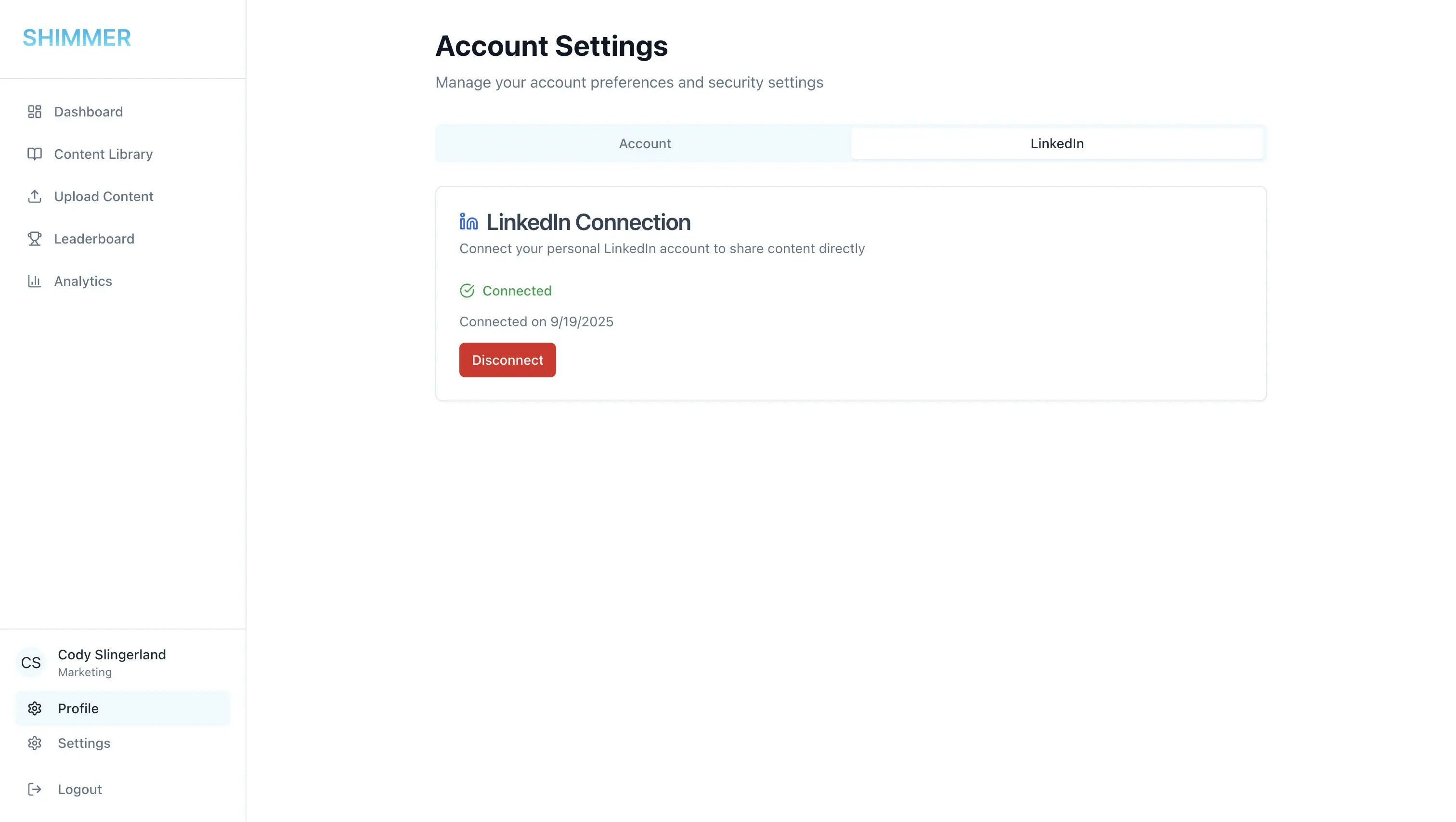
1. **Navigate to Profile**: Located in the lefthand corner of the platform (below your name)
2. \*\*Click on the "LinkedIn" tab: \*\*Located on your Profile page
3. **Click "Connect to LinkedIn"**: This will redirect you to LinkedIn's OAuth authorization
4. **Authorize Shimmer**: Grant permission for content posting capabilities
5. **Automatic Redirect**: You'll be redirected back to Shimmer upon successful connection
6. **Confirmation**: Your dashboard will show "Connected" status
### **Required Permissions**
Shimmer requests the following LinkedIn permissions:
* **Profile Access**: To verify your identity and display connection status
* **Content Posting**: To publish posts directly to your LinkedIn feed
* **Media Upload**: To share images and videos with your posts
### **Disconnecting LinkedIn**
1. **Navigate to Profile Settings**
2. **Click the LinkedIn tab**
3. **Click "Disconnect"**
### **Security and Privacy**
**OAuth 2.0 Security**
* Industry-standard OAuth 2.0 authentication
* No storage of LinkedIn passwords
* Secure token management with automatic refresh
* Revocable access at any time
**Data Privacy**
* Shimmer only accesses necessary LinkedIn functions
* No reading of your existing LinkedIn content
* No access to your LinkedIn connections or messages
## **Sharing Content to LinkedIn**
### **Initial Connection**
1. **Navigate to Profile**: Located in the lefthand corner of the platform (below your name)
2. \*\*Click on the "LinkedIn" tab: \*\*Located on your Profile page
3. **Click "Connect to LinkedIn"**: This will redirect you to LinkedIn's OAuth authorization
4. **Authorize Shimmer**: Grant permission for content posting capabilities
5. **Automatic Redirect**: You'll be redirected back to Shimmer upon successful connection
6. **Confirmation**: Your dashboard will show "Connected" status
### **Required Permissions**
Shimmer requests the following LinkedIn permissions:
* **Profile Access**: To verify your identity and display connection status
* **Content Posting**: To publish posts directly to your LinkedIn feed
* **Media Upload**: To share images and videos with your posts
### **Disconnecting LinkedIn**
1. **Navigate to Profile Settings**
2. **Click the LinkedIn tab**
3. **Click "Disconnect"**
### **Security and Privacy**
**OAuth 2.0 Security**
* Industry-standard OAuth 2.0 authentication
* No storage of LinkedIn passwords
* Secure token management with automatic refresh
* Revocable access at any time
**Data Privacy**
* Shimmer only accesses necessary LinkedIn functions
* No reading of your existing LinkedIn content
* No access to your LinkedIn connections or messages
## **Sharing Content to LinkedIn**
 ### **Direct Posting**
**From Content Library**
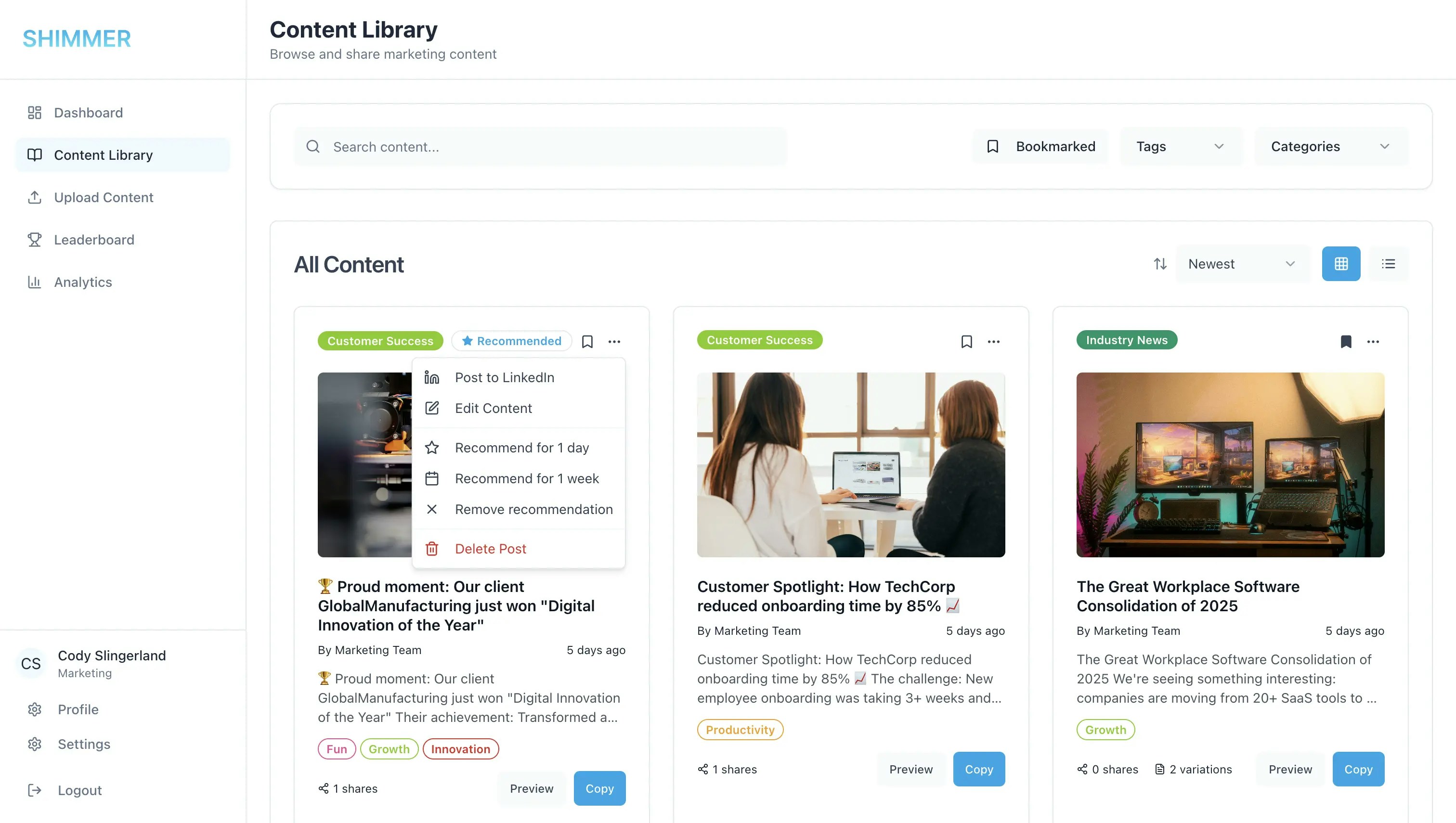
1. Browse or search for content in the Content Library
2. Click on any content card to open the preview
3. Click "Post to LinkedIn" button
4. Content automatically formats and posts to LinkedIn
**From Content Preview**
1. Click "Share to LinkedIn" from the top right corner of the page
### **Copy to Clipboard**
**Quick Sharing Alternative**
1. Click "Copy Content" on any content item
2. Content text copied to your clipboard
3. Navigate to LinkedIn manually
4. Paste content into a new LinkedIn post
5. Add personal touches before publishing
### **Direct Posting**
**From Content Library**
1. Browse or search for content in the Content Library
2. Click on any content card to open the preview
3. Click "Post to LinkedIn" button
4. Content automatically formats and posts to LinkedIn
**From Content Preview**
1. Click "Share to LinkedIn" from the top right corner of the page
### **Copy to Clipboard**
**Quick Sharing Alternative**
1. Click "Copy Content" on any content item
2. Content text copied to your clipboard
3. Navigate to LinkedIn manually
4. Paste content into a new LinkedIn post
5. Add personal touches before publishing