> ## Documentation Index
> Fetch the complete documentation index at: https://docs.tryshimmer.com/llms.txt
> Use this file to discover all available pages before exploring further.
# Searching & Filtering
> Shimmer's advanced search and filtering system helps you quickly discover the right content for any situation. With multiple search parameters and intelligent filtering options, you can find exactly what you need from your organization's content library.
## **Search Functionality**
### **Basic Search**
**How to Search**
1. Navigate to the Content Library
2. Use the search bar at the top of the page
3. Type your search terms
4. Results update automatically as you type
**Search Scope**
* Content titles
* Content descriptions/body text
* Author names
**Search Features**
* **Case-insensitive**: Search works regardless of capitalization
* **Real-time results**: See results as you type
## **Filtering System**
### **Category Filters**
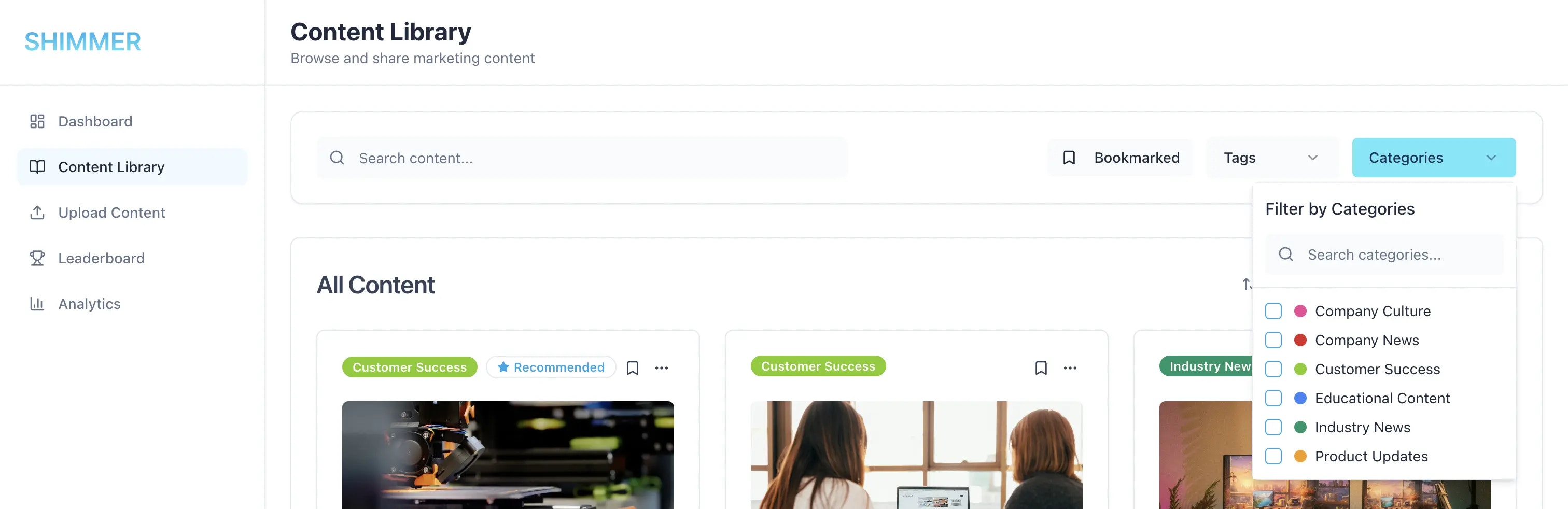 **How Categories Work**
* Admin-controlled category system
* Color-coded for visual organization
* Multiple categories can be selected simultaneously
**Using Category Filters**
1. Click the "Categories" filter dropdown
2. Select one or more categories
3. Results automatically update
4. Clear filters by deselecting categories
**Category Benefits**
* Organize content by type (case studies, product sheets, etc.)
* Quick access to specific content categories
* Visual organization with color coding
* Consistent categorization across the platform
### **Tag Filters**
**How Categories Work**
* Admin-controlled category system
* Color-coded for visual organization
* Multiple categories can be selected simultaneously
**Using Category Filters**
1. Click the "Categories" filter dropdown
2. Select one or more categories
3. Results automatically update
4. Clear filters by deselecting categories
**Category Benefits**
* Organize content by type (case studies, product sheets, etc.)
* Quick access to specific content categories
* Visual organization with color coding
* Consistent categorization across the platform
### **Tag Filters**
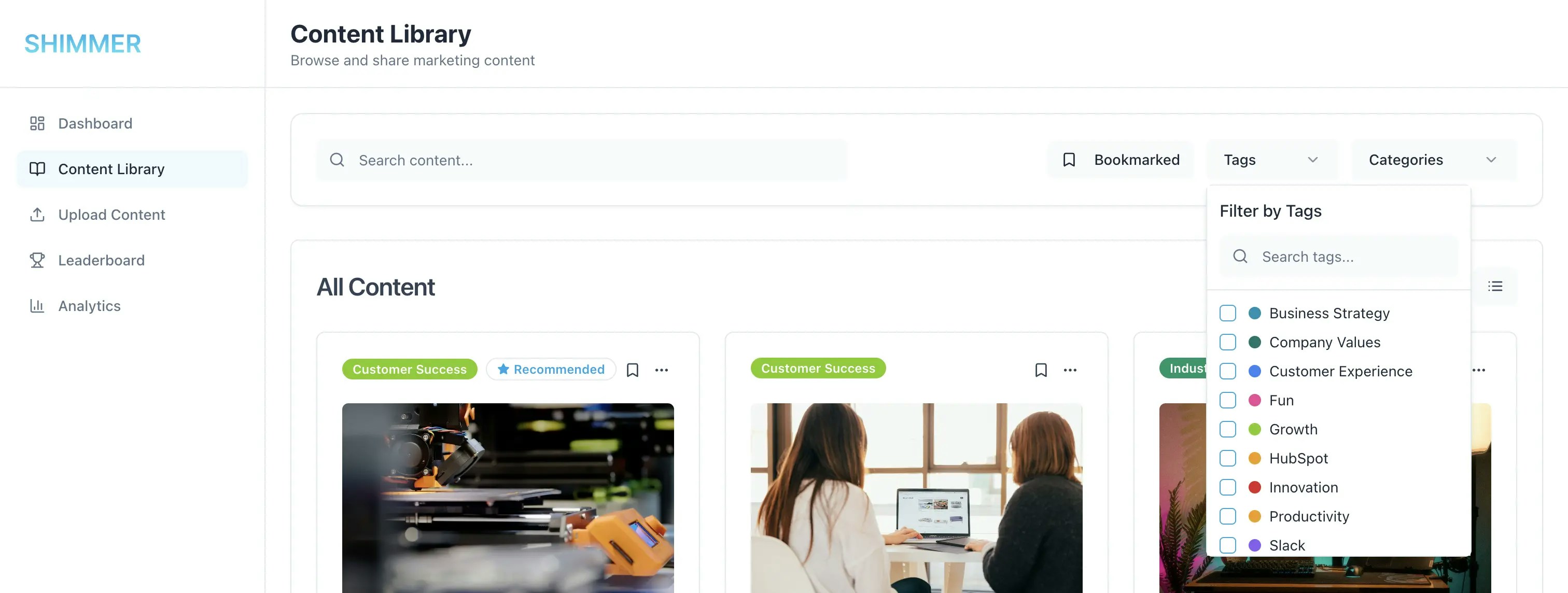 **Using Tag Filters**
1. Click in the "Tags" filter dropdown
2. Select one or more tags
3. Results automatically update
4. Clear filters by deselecting categories
### **Bookmark Filter**
**Personal Content Curation**
* Toggle to show only your bookmarked content
* Quick access to frequently used materials
**Using Bookmark Filter**
1. Click the "Show Bookmarked Only" toggle
2. View only content you've bookmarked
3. Toggle off to see all content again
4. Combine with other filters for precise results
## **Troubleshooting Search and Filters**
### **Common Issues**
**No Results Found**
1. Check spelling of search terms
2. Try broader search terms
3. Clear some filters to expand results
4. Verify content exists in the selected filters
**Slow Search Performance**
1. Clear browser cache and refresh page
2. Try more specific search terms
3. Use filters before searching to narrow scope
4. Report persistent issues to administrators
**Filter Not Working**
1. Refresh the page and try again
2. Clear all filters and reapply
3. Check if content exists in the selected filter criteria
4. Verify your permissions for accessing certain content
**Using Tag Filters**
1. Click in the "Tags" filter dropdown
2. Select one or more tags
3. Results automatically update
4. Clear filters by deselecting categories
### **Bookmark Filter**
**Personal Content Curation**
* Toggle to show only your bookmarked content
* Quick access to frequently used materials
**Using Bookmark Filter**
1. Click the "Show Bookmarked Only" toggle
2. View only content you've bookmarked
3. Toggle off to see all content again
4. Combine with other filters for precise results
## **Troubleshooting Search and Filters**
### **Common Issues**
**No Results Found**
1. Check spelling of search terms
2. Try broader search terms
3. Clear some filters to expand results
4. Verify content exists in the selected filters
**Slow Search Performance**
1. Clear browser cache and refresh page
2. Try more specific search terms
3. Use filters before searching to narrow scope
4. Report persistent issues to administrators
**Filter Not Working**
1. Refresh the page and try again
2. Clear all filters and reapply
3. Check if content exists in the selected filter criteria
4. Verify your permissions for accessing certain content