> ## Documentation Index
> Fetch the complete documentation index at: https://docs.tryshimmer.com/llms.txt
> Use this file to discover all available pages before exploring further.
# Admin Features & Management
> Shimmer provides comprehensive administrative capabilities for organization admins to manage users, content organization, platform settings, and analytics. This guide covers all admin features and best practices for platform management.
# **Admin Features & Management**
Shimmer provides comprehensive administrative capabilities for organization admins to manage users, content organization, platform settings, and analytics. This guide covers all admin features and best practices for platform management.
## **User Management**
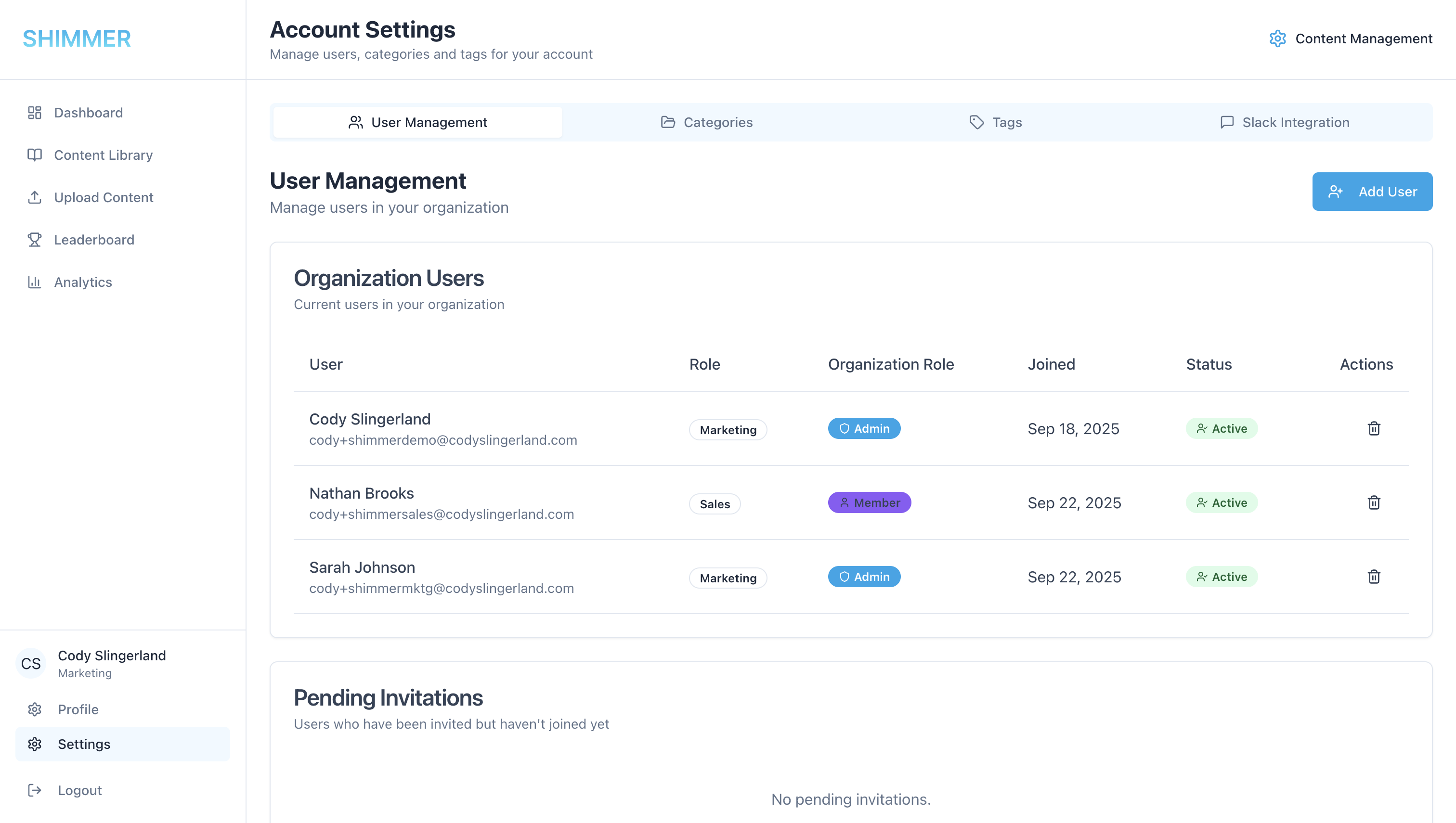 ### **Invitation System**
**Creating User Invitations**
1. Navigate to Settings > User Management
2. Click "Add User" button
3. Invitation link automatically generated and copied to clipboard
4. Share the copied link with new users
5. Track pending invitations in the management interface
## **Category Management**
### **Invitation System**
**Creating User Invitations**
1. Navigate to Settings > User Management
2. Click "Add User" button
3. Invitation link automatically generated and copied to clipboard
4. Share the copied link with new users
5. Track pending invitations in the management interface
## **Category Management**
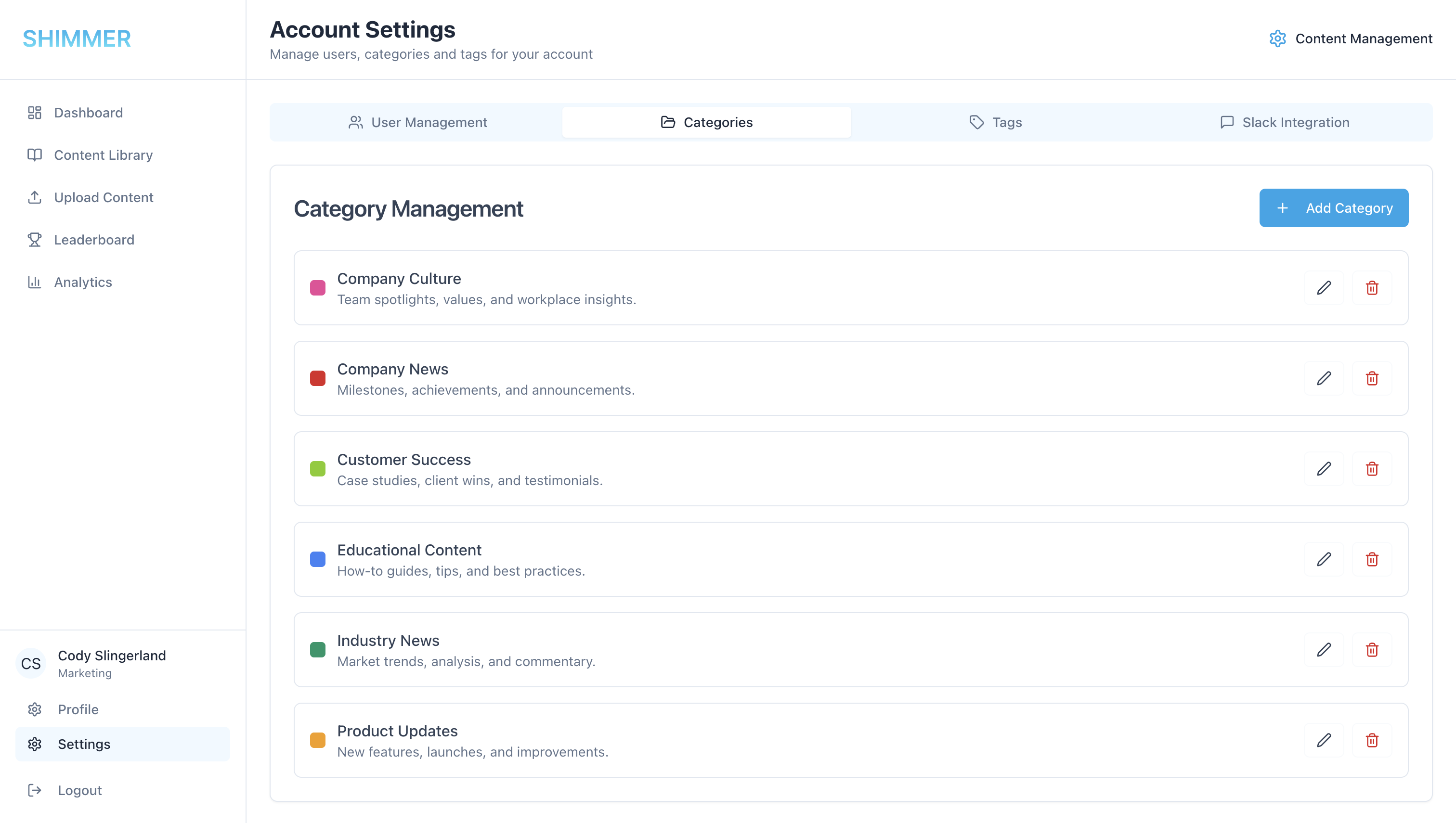 ### **Category System Overview**
* Organize content by category with color-coding
* Required field for all content uploads
* Filterable in content library
### **Creating and Managing Categories**
**Adding New Categories**
1. Navigate to Settings > Categories
2. Click "Add Category" button
3. Enter category name and description
4. Select color for visual identification
5. Save category for immediate availability
**Category Best Practices**
* Use clear, descriptive category names
* Maintain consistent color coding system
* Limit number of categories for simplicity
* Regular review and cleanup of unused categories
## **Tag Management**
### **Category System Overview**
* Organize content by category with color-coding
* Required field for all content uploads
* Filterable in content library
### **Creating and Managing Categories**
**Adding New Categories**
1. Navigate to Settings > Categories
2. Click "Add Category" button
3. Enter category name and description
4. Select color for visual identification
5. Save category for immediate availability
**Category Best Practices**
* Use clear, descriptive category names
* Maintain consistent color coding system
* Limit number of categories for simplicity
* Regular review and cleanup of unused categories
## **Tag Management**
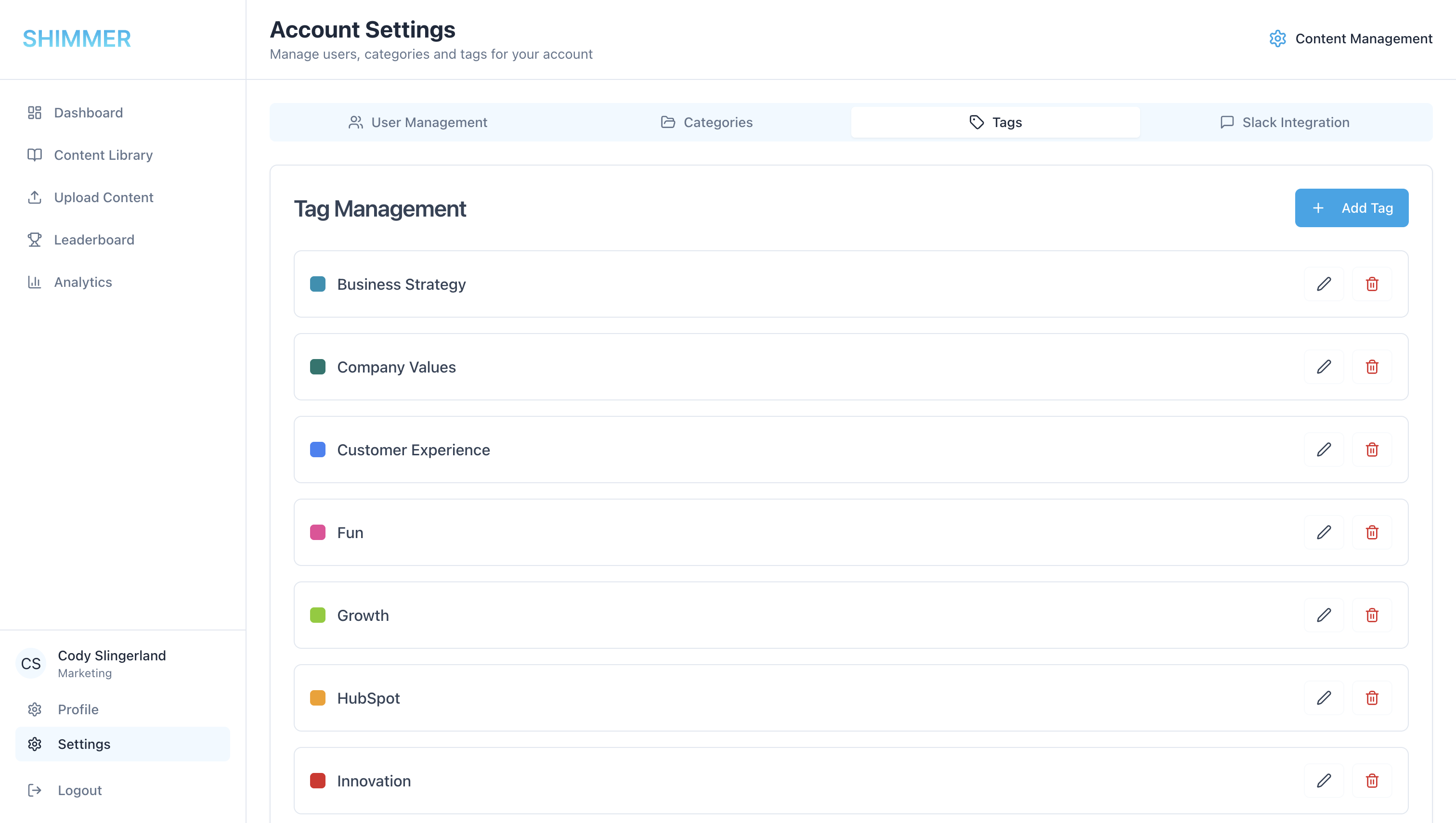 ### **Creating and Managing Tags**
**Tag Creation**
1. Navigate to Settings > Tags
2. Add new tags with clear descriptions
3. Optionally: You can add new tags while uploading content
**Tag Best Practices**
* Use specific, descriptive tags
* Maintain tag consistency across content
* Regular tag audit and cleanup
### **Slack Integration Management**
### **Creating and Managing Tags**
**Tag Creation**
1. Navigate to Settings > Tags
2. Add new tags with clear descriptions
3. Optionally: You can add new tags while uploading content
**Tag Best Practices**
* Use specific, descriptive tags
* Maintain tag consistency across content
* Regular tag audit and cleanup
### **Slack Integration Management**
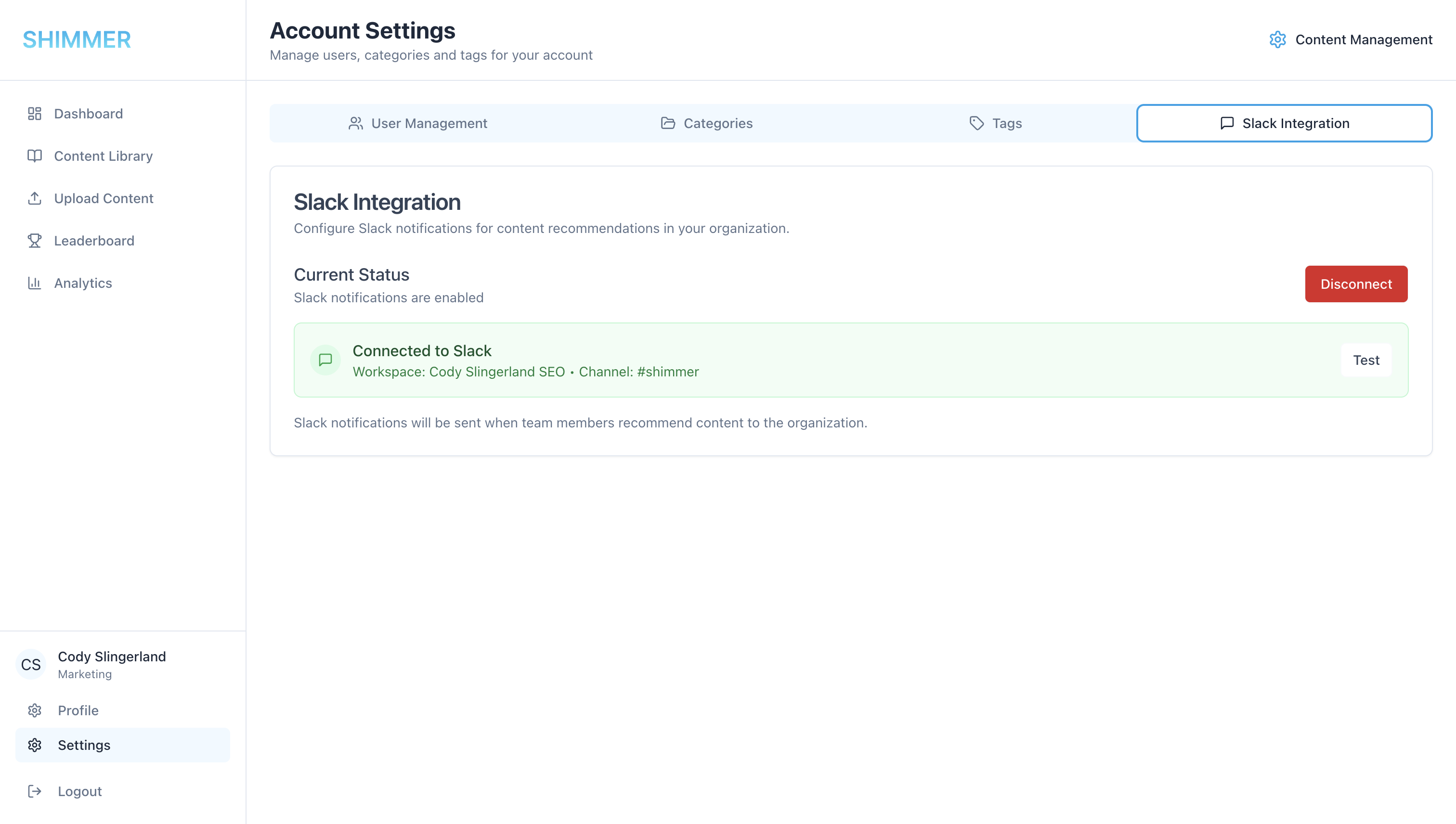 **Connecting Your Slack**
1. Click the "Add to Slack" button
2. Select the Slack channel where you'd like Shimmer to post to
3. Click "Allow"
4. Click "Test" to test the Slack channel connect (a test message will be posted to the Slack channel you connected)
**Connecting Your Slack**
1. Click the "Add to Slack" button
2. Select the Slack channel where you'd like Shimmer to post to
3. Click "Allow"
4. Click "Test" to test the Slack channel connect (a test message will be posted to the Slack channel you connected)